
|
|
|
These options are basic compiler options available to all models.
Change Platforms Button
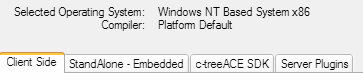
Click the Change button to select your platform and compiler of choice. You will be presented with a set of tabbed windows with information on the supported platforms and compilers for each. Click OK when you have made your choices. Supported platform/compiler combinations are listed later in the Platforms Window section of this help file. Your selected operating system and compiler choice will be displayed at the top of the window above the tabs.
Project Directory
You can select the project directory where you would like your FairCom DB project files to go. .\myProject is the default location.

Build
FairCom DB Lets you choose a release build or a build including debugging information specific to your platform and compiler. The availability of the FairCom DB Professional source code allows for this capability.

Click the Build button to begin the mtree build process.
Build Output and Information Tabs
Output from the build process is sent to the mtPro utility where it is captured on the Build Output tab found on the lower portion of the window. Browse through this output should you encounter any errors and to determine how to resolve them.
The Information tab displays specific information about the combination of options you have chosen for your selected build. Check this information before you build and be sure it includes the options you desire.



