As an example, FairCom DB Standalone SQL Service can be used to connect an Excel spreadsheet to your FairCom DB database. After installing FairCom DB Standalone SQL Service as described in this chapter, follow these steps to connect your ODBC data source to your spreadsheet:
Be sure your FairCom DB Standalone SQL Service process is up and running. You will be connecting your ODBC driver to it via a client connection. Be sure any relevant tables have already been imported to FairCom DB Standalone SQL Service.
Be sure your FairCom DB SQL ODBC Driver is installed on the box with your Excel application.
Remember: Use 64-bit ODBC for 64-bit versions of Excel and use 32-bit ODBC for 32-bit versions. An architecture mismatch is not allowed for loading the ODBC Driver DLLs.
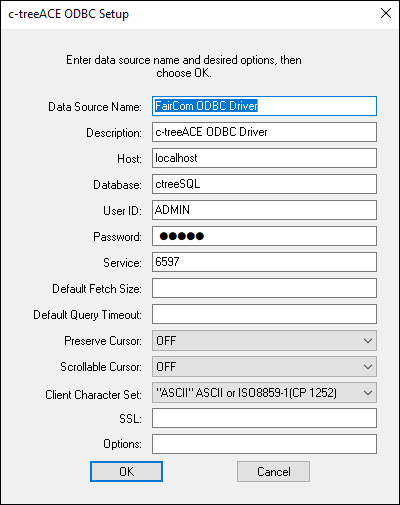
Configure your ODBC driver parameters to point to the FairCom DB Standalone SQL Service data source in the ODBC Administrator. (Again, use the appropriate "bit-ness" for the ODBC installed.) You will need your FairCom DB Standalone SQL Service machine name, and other relevant information:
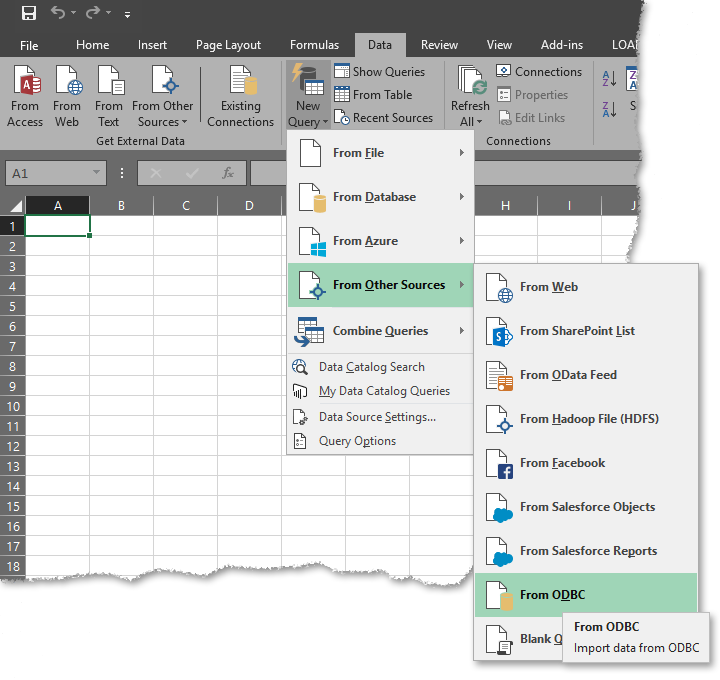
In Excel, choose Data. From the ribbon menu, pick either From Other Sources > MS Query or New Query.
You should be able to see the tables and columns once you have successfully connected to the FairCom DB Standalone SQL Service.